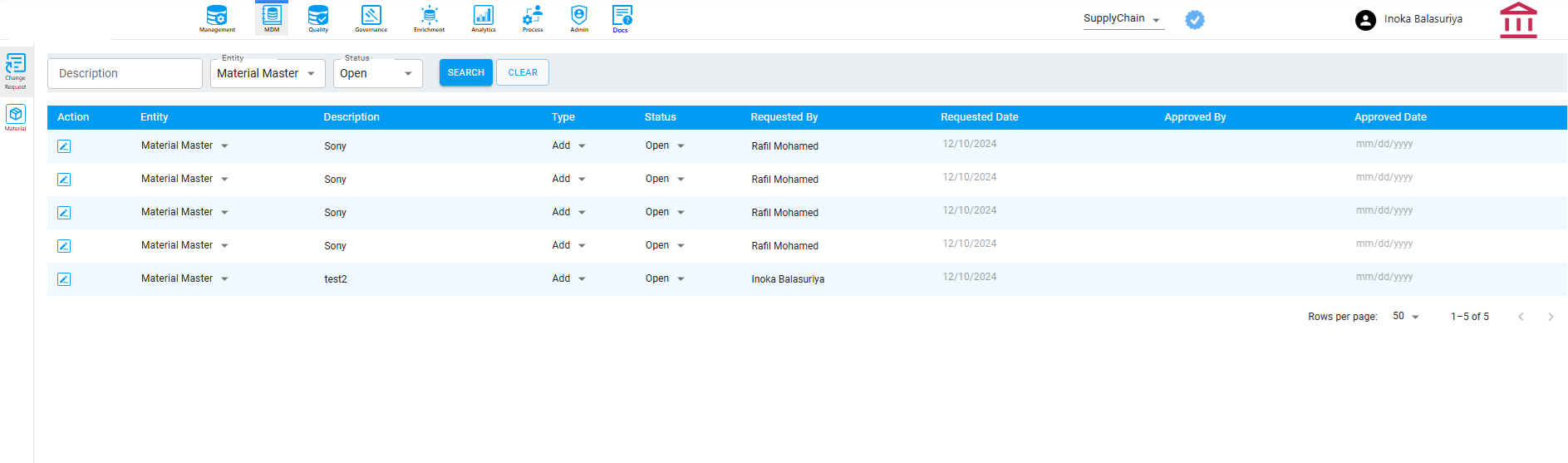
Change Request
OnCoor's MDM Change Request feature
Overview
The Change Request feature in the MDM (Master Data Management) module of this application is designed to manage and streamline updates to master data while ensuring data integrity, governance, and approval workflows
Key Functions of CR Feature
• Initiating a Change Request: Users can create a change request to update, add, or delete master data records.
• Approval Workflow: Each change request goes through an approval process.
• Notifications and alerts are sent to approvers to ensure timely action.
• Tracking and Monitoring: Users can track the status of their requests (completed, denied, open, Submitted).
• Implementation of Changes: Once approved, the change is applied to the master data records.
• Notifications and Communication: Users are notified of the status of their requests ( approval, rejection, or completion).
• Role-Based Access Control: Access to the change request feature is restricted based on user roles to ensure data security.
Benefits of the CR Feature
• Improved Data Governance: Ensures all master data changes are reviewed and approved, maintaining data integrity.
• Transparency: Provides clear visibility into who requested, approved, and implemented changes.
• Efficiency: Automates workflows, reducing manual efforts and processing time.
• Auditability: Maintains detailed logs for compliance and accountability.
• Consistency: Ensures that master data updates align with organizational standards and are consistently applied across systems.
How it Works
Search the CR that matches the criteria
At the top of the screen, there's a search bar, as emphasized in the section below. When the user selects a specific Description, Entity, and Status, and then clicks Search, the system shows all Change Requests that match the chosen criteria.
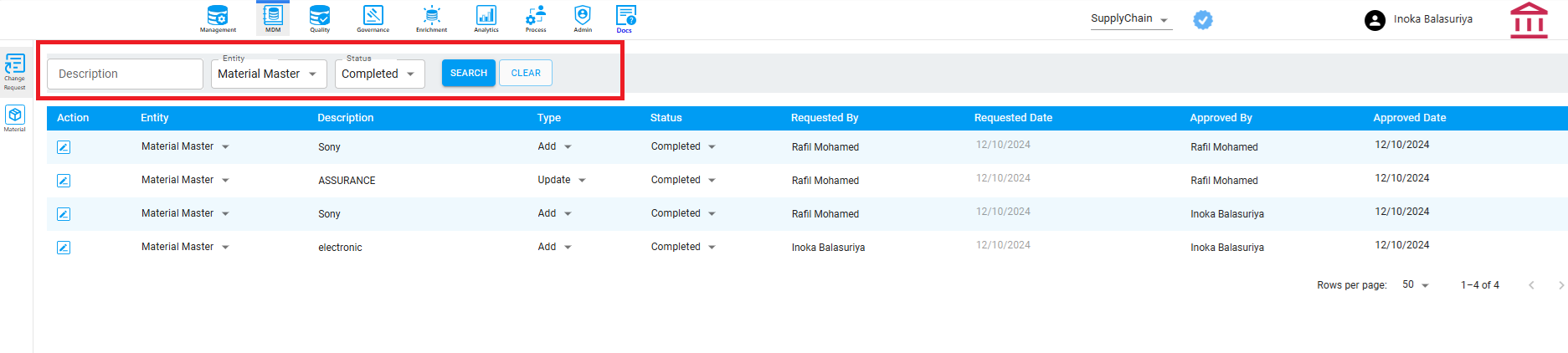
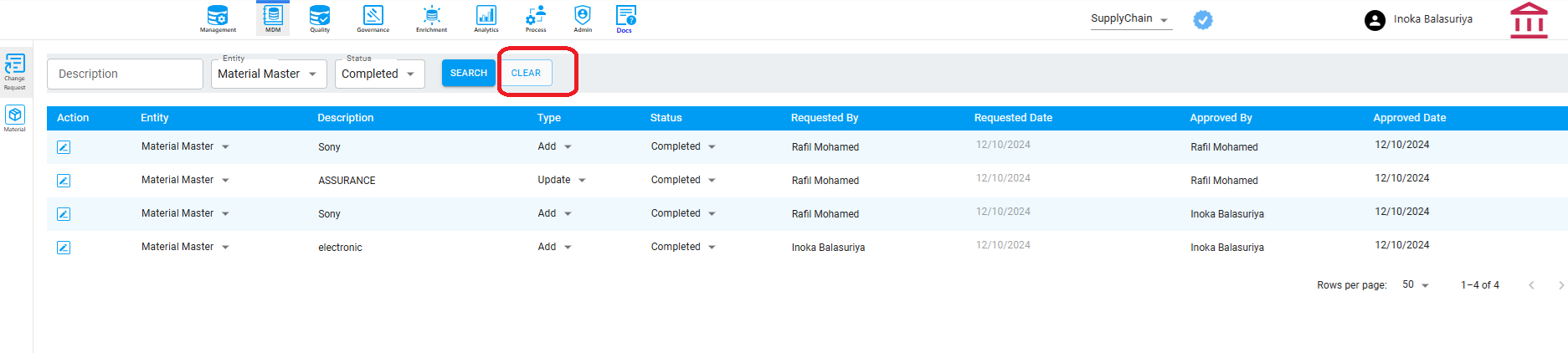
Clear the Search
The user needs to click the Clear button to reset their search. This action will remove the entered criteria and display the complete, unfiltered list
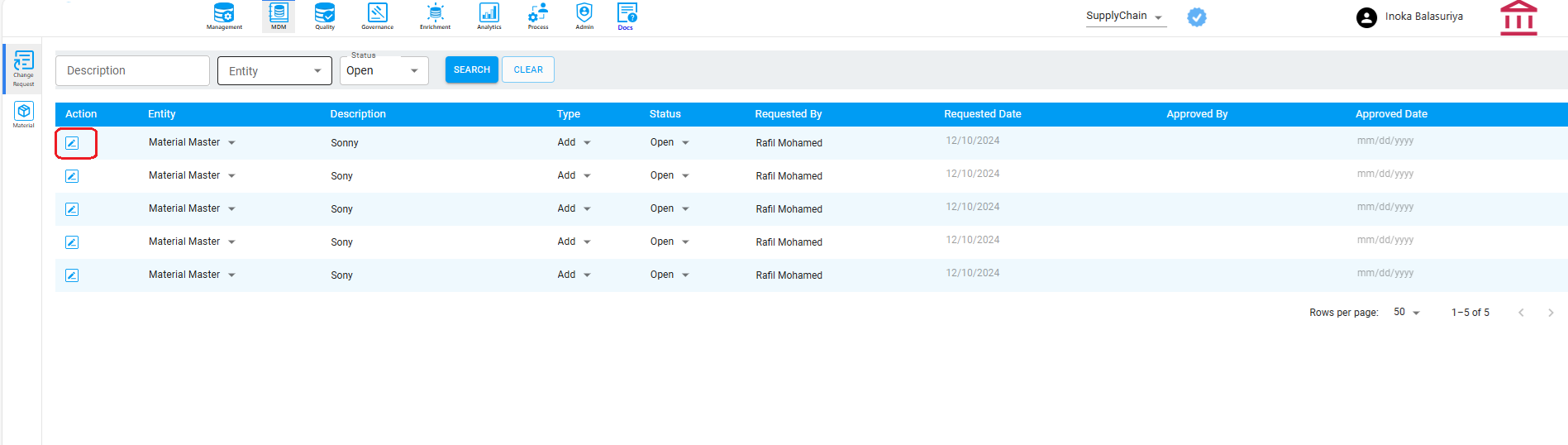
Edit
When the user clicks the edit button in change request it will be directed to a form where he can add or update data and submit
CR to Add new Material
The user clicks edit button and the type is add it will direct to the below screen where he can Add new material ,Save & Submit data.Below message will be displayed saying New CR is created.
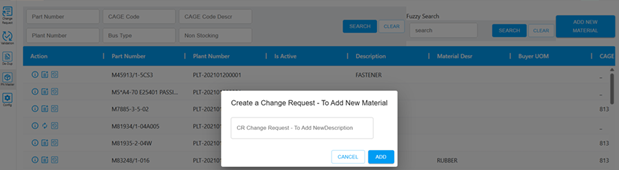
When the user enter the value and click Add it will direct to the below page.
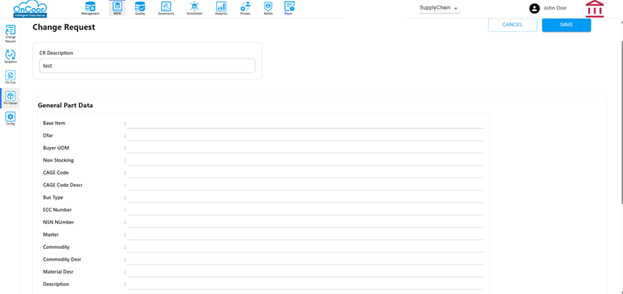
CR to update Material
The user clicks edit button and the type is update it will direct to the below screen where he can update material data & Submit
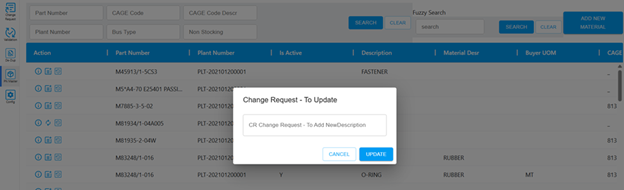
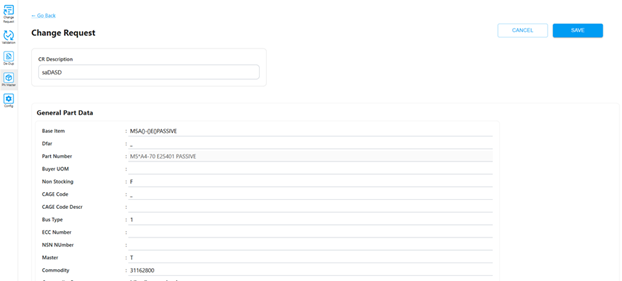
Submit data
When a user adds or updates material and submits the request, it is sent through the workflow to the approvers configured in the system. A message will then appear stating, "Change Request Submitted," as shown on the screen.
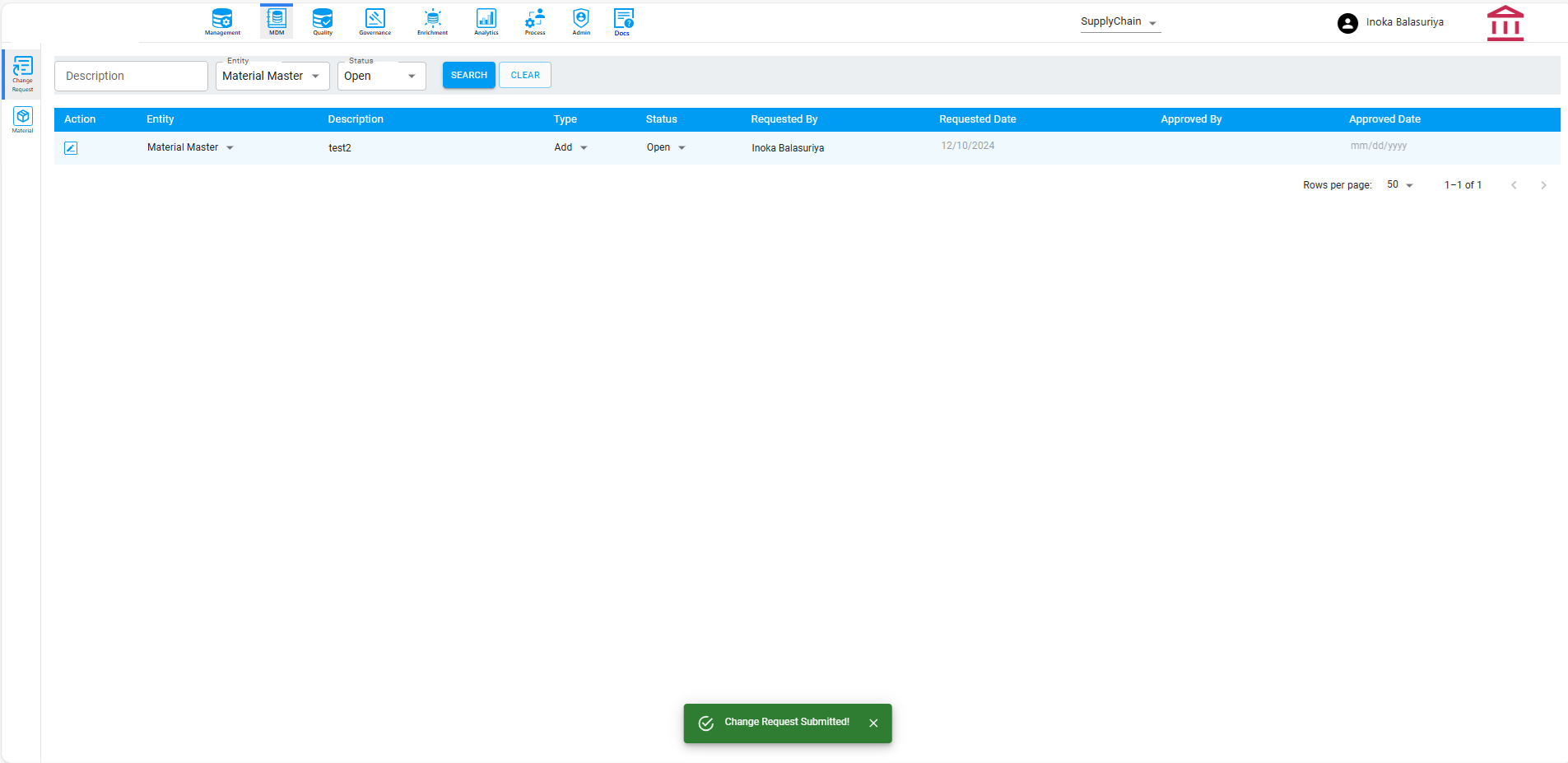
The approver will receive a notification email containing a link to the Change Request Update. By clicking the link, the approver can access the request and either Approve or Deny it, as shown below.
Once approved, the system redirects the user to the Change Requests List page. Here, the user can filter requests by their status, such as Completed, Denied, Open, or Submitted, and view the corresponding change requests.