Configuration
OnCoor's Configuration feature
Overview
In Master Data Management (MDM), the Configuration module plays a crucial role in setting up and customizing the MDM system according to the specific needs of an organization. The configuration module allows administrators and users to define and manage various setting & rules that govern how master data is created, updated, stored, and maintained across the organization.
Configuration Page
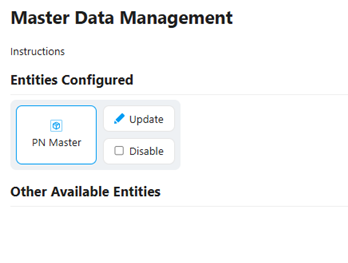
The Config button opens a page where users can customize and manage the PN Master entities, enabling or disabling them as needed.
User Interaction: When the user clicks the Config button, a configuration page will appear.
Functionality on the Configuration Page: On this page, the user will have the option to update or disable specific PN Master entities, based on their requirements or settings.
Update Configuration
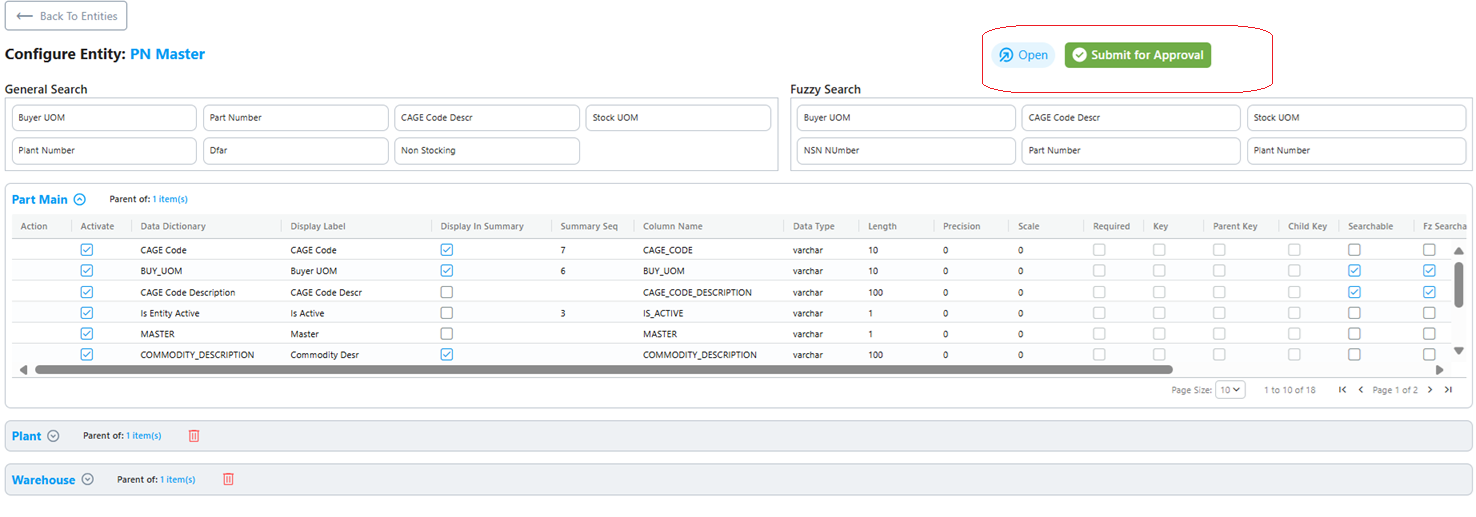
When the user clicks the update button below page will be displayed where he can update the configuration settings ,Do search and Fuzzy search for given data etc.
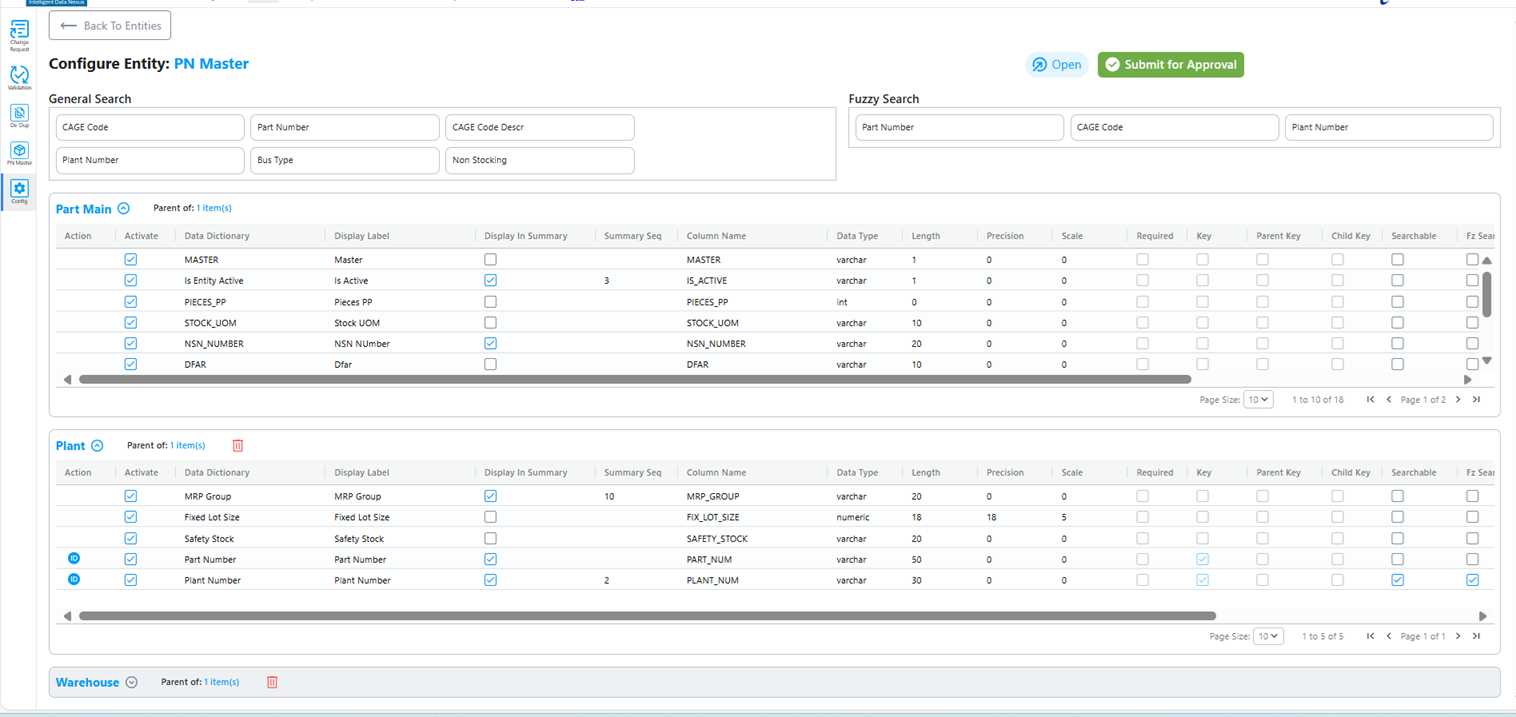
Unique ID
Unique ID can be seen in the action column for some records
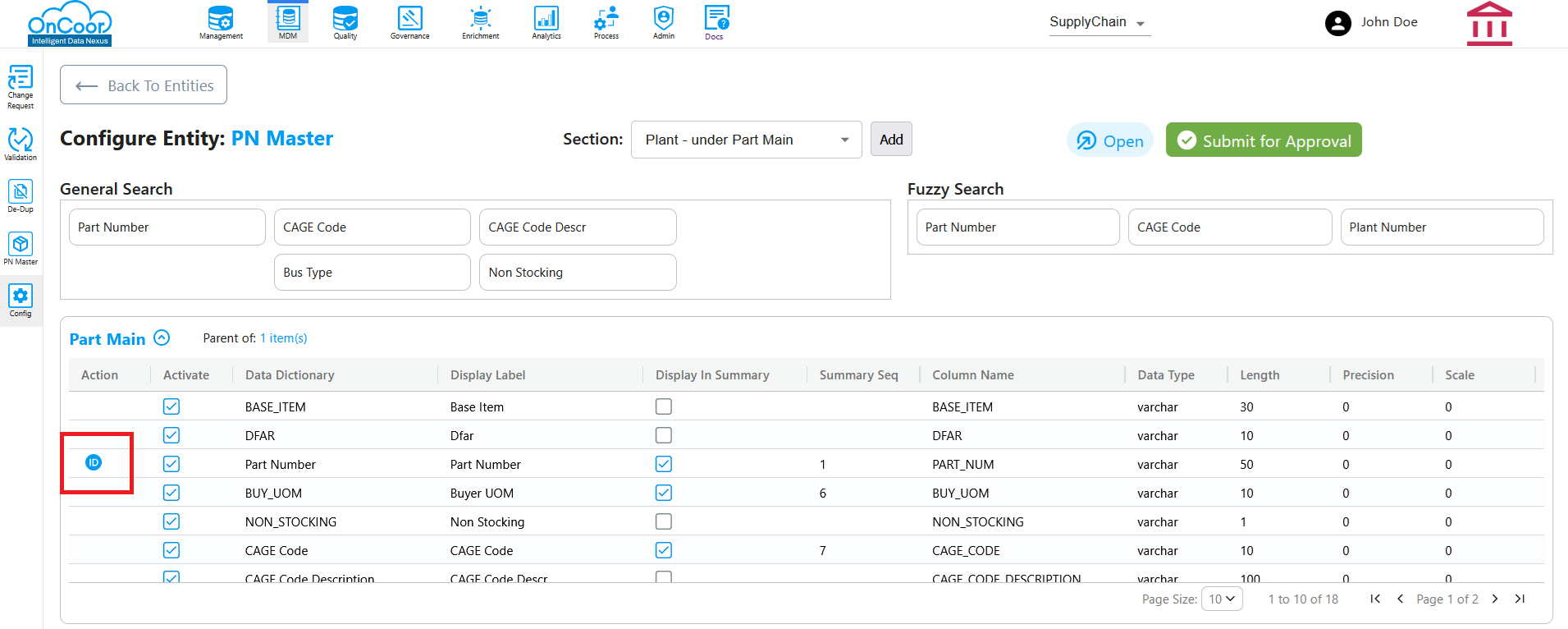
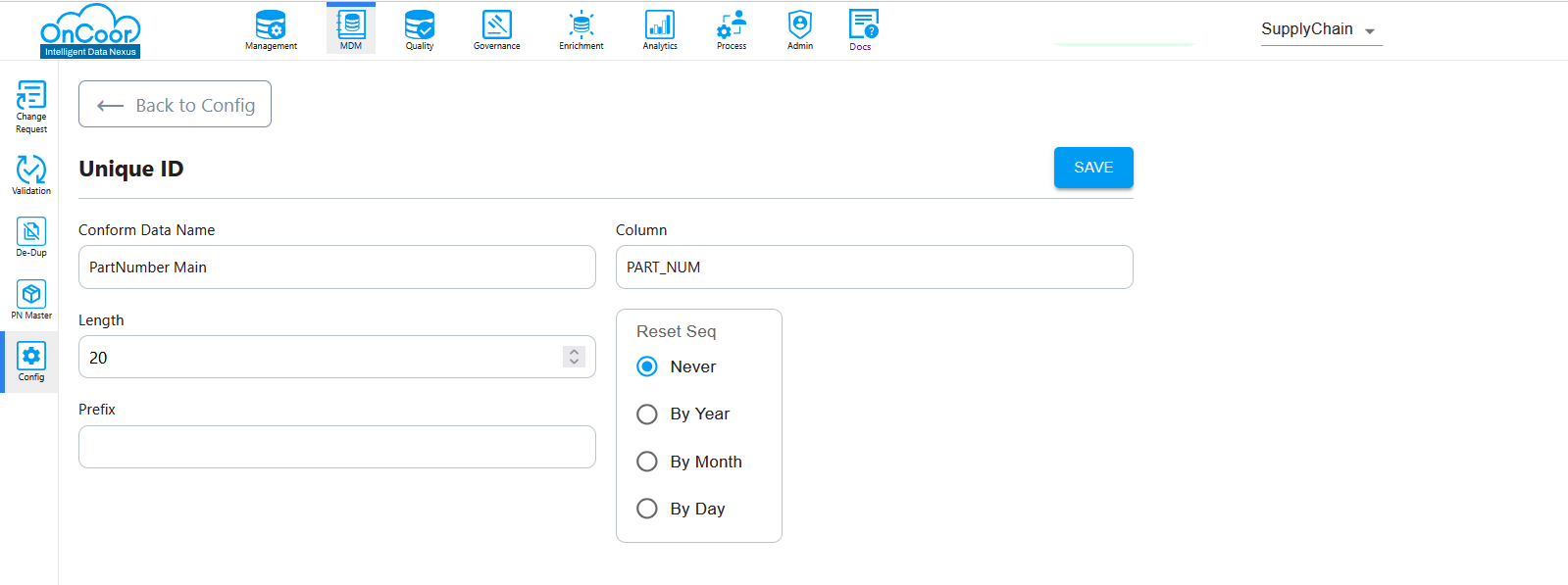
When user click Unique ID it will be directed to the page below.User can enter details select the Reset Sequence and save
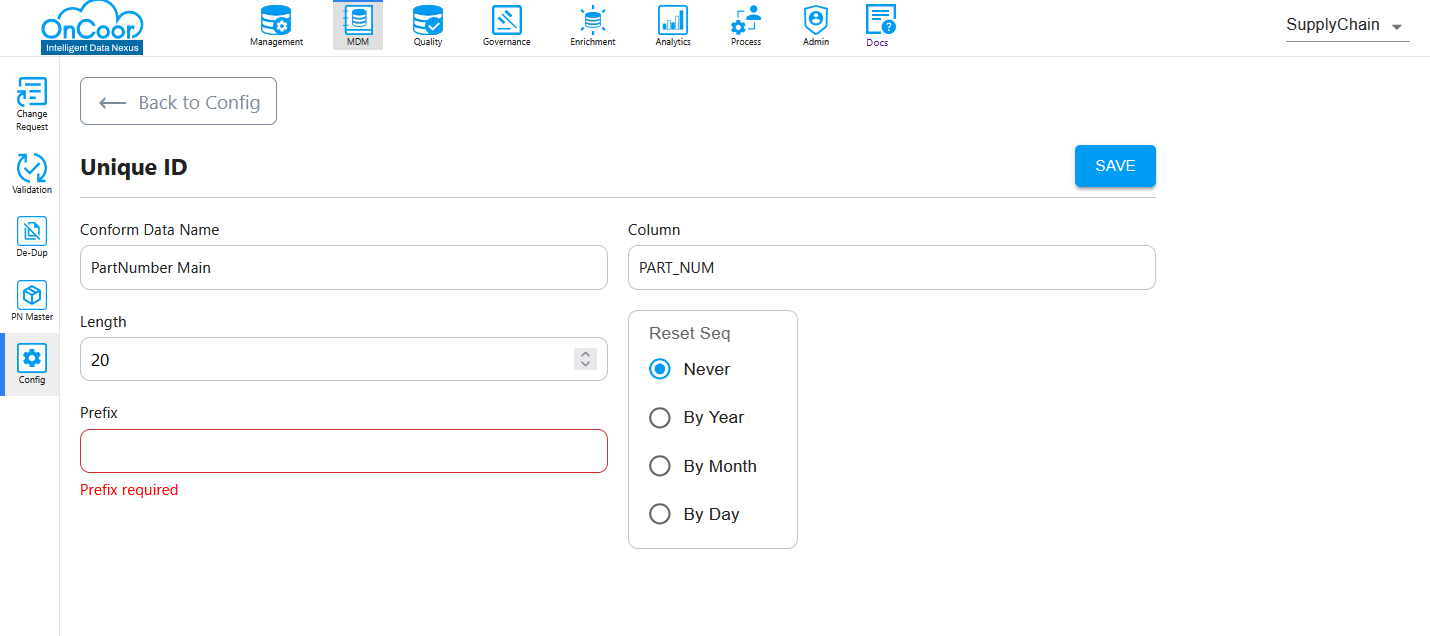
Prefix field is required and manditory.
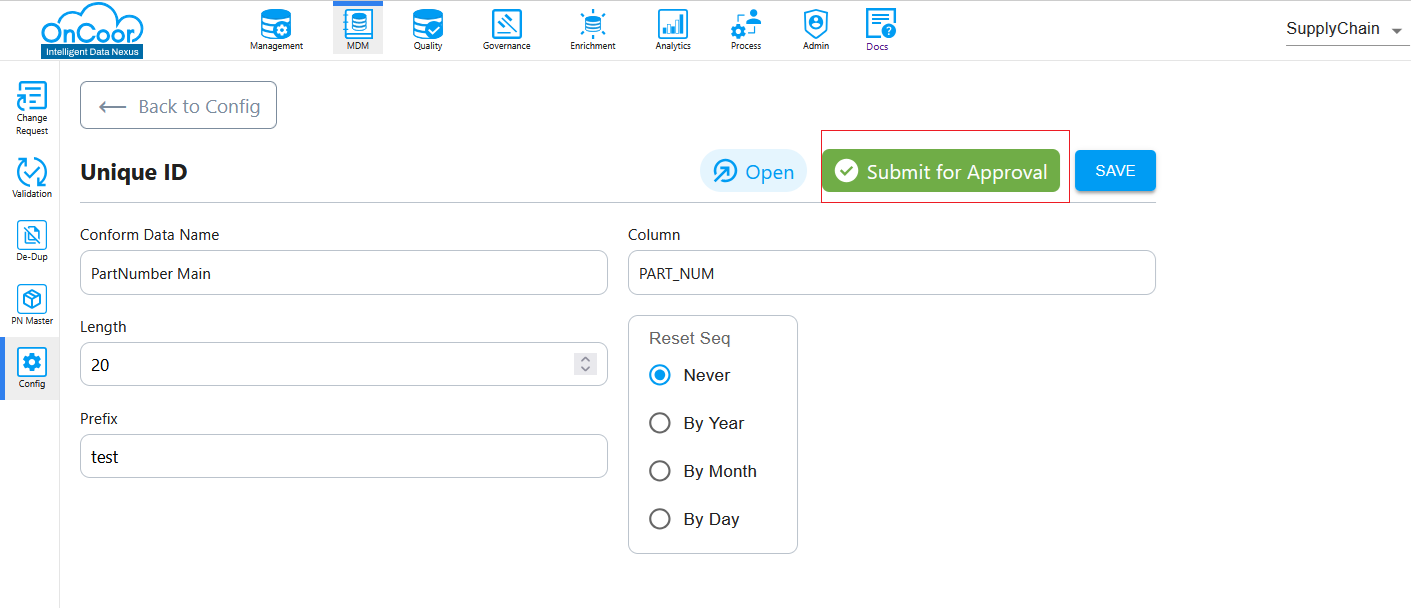
After saving the details user can Submit for approval.
Update Fields & labels
Fields are displayed in a PN Master based on certain conditions, and users can activate or deactivate data dictionaries using checkboxes. Additionally, there's a label feature that users can select to be displayed in the PN Master.
Fields Displayed Based on Summary Checkbox:
Fields in the PN Master are shown according to the values selected for the Display summary checkbox in different sections. If a section is marked for display, the fields corresponding to that section will be visible.
Activate/Deactivate Data Dictionaries:
Users can activate or deactivate data dictionaries by selecting the checkboxes in the "Activate" column. This action allows them to control which data dictionaries are active and which are not.
Label Selection:
Users can also select a label, which will then be displayed in the PN Master. This label can be customized according to the user's choice.
In simpler terms, the system lets users customize which fields appear in the PN Master, control the activation of data dictionaries, and choose a label for display. the page will also allow users to update the sequence of how the fields are displayed in the PN Master.
Update Labels and Summery with Sequence
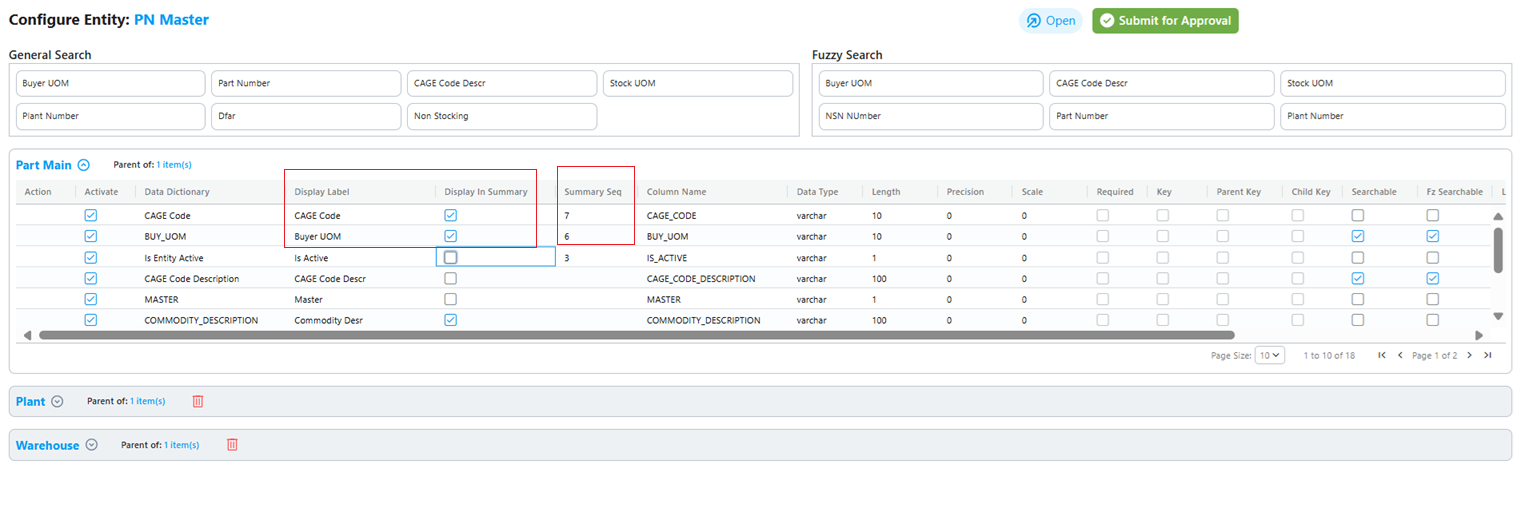
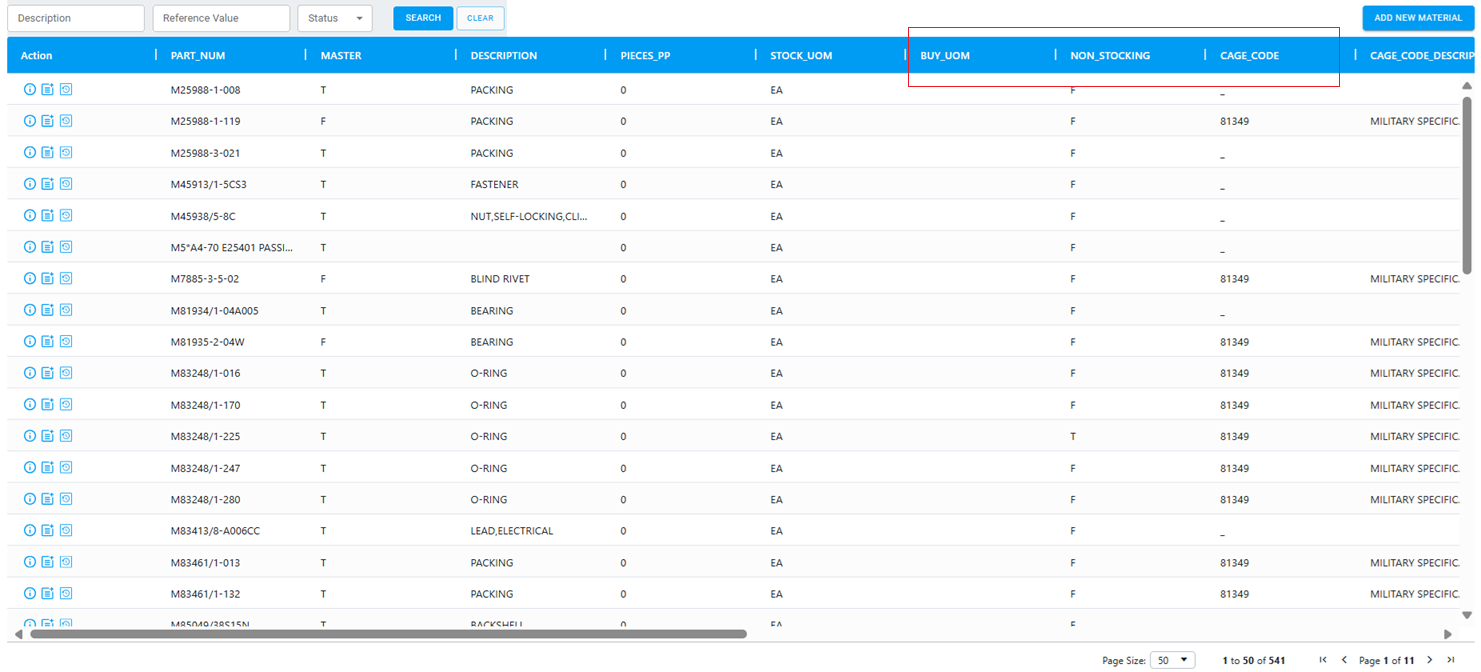
Users will have the ability to reorder the fields, customizing the layout and display order of the information in the PN Master according to their preferences.
PN Master Summery according to the updates
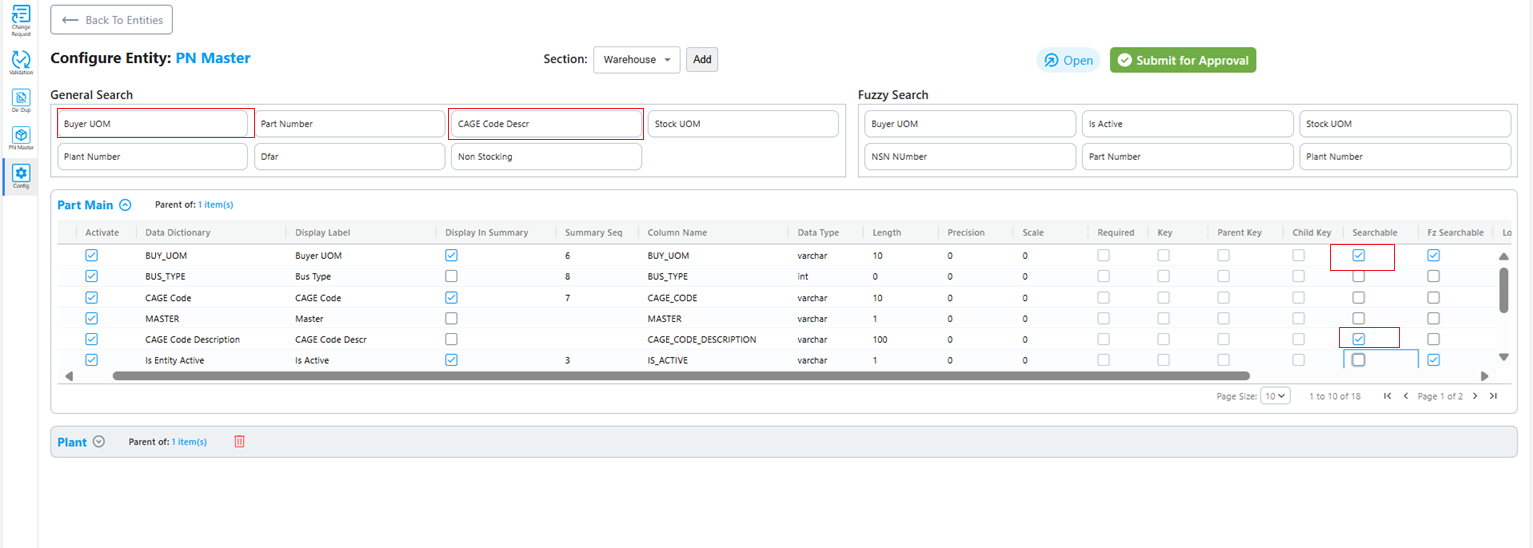
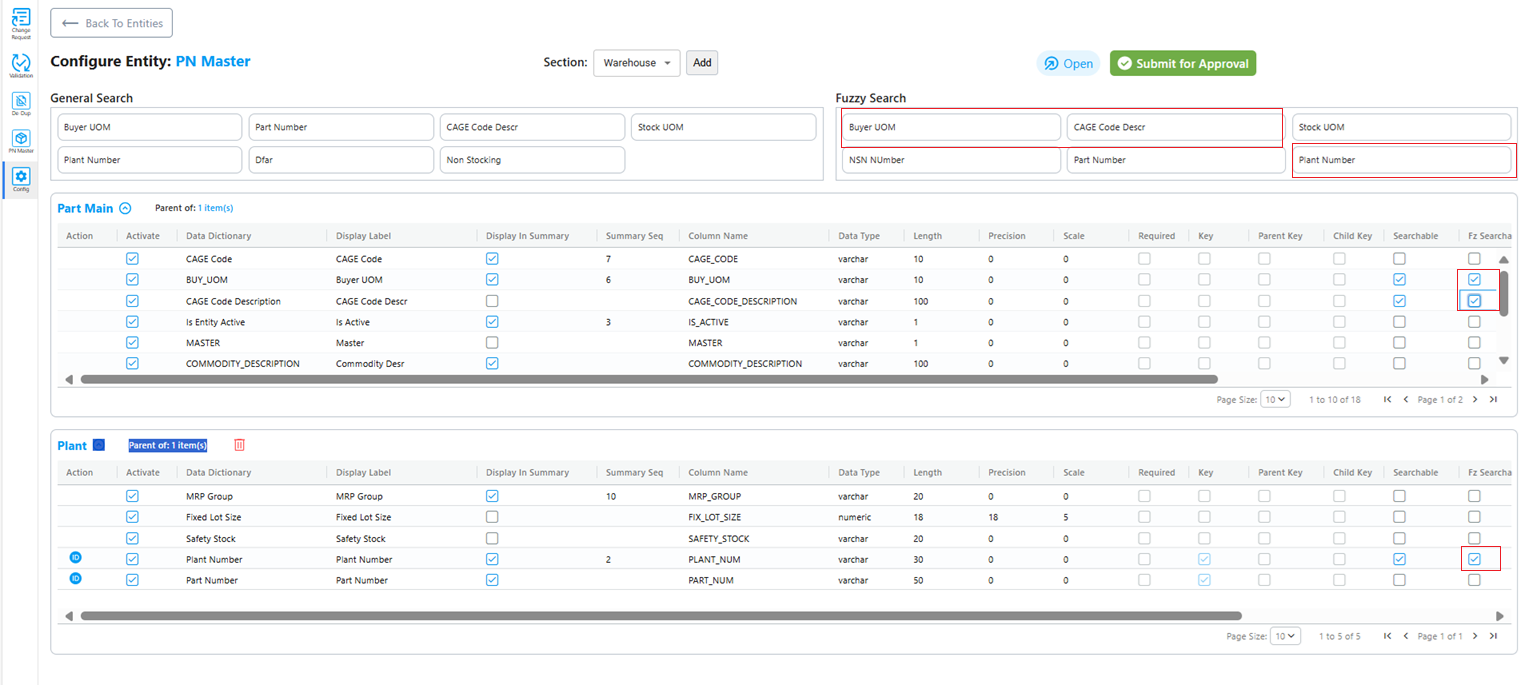
Update Searchable and Fz searchable fields
User can select Searchable and fz searchable fields according to that it will be displayed in the top for the user to search and do fuzzy search
Searchable Fields
Fuzzy Search Fields
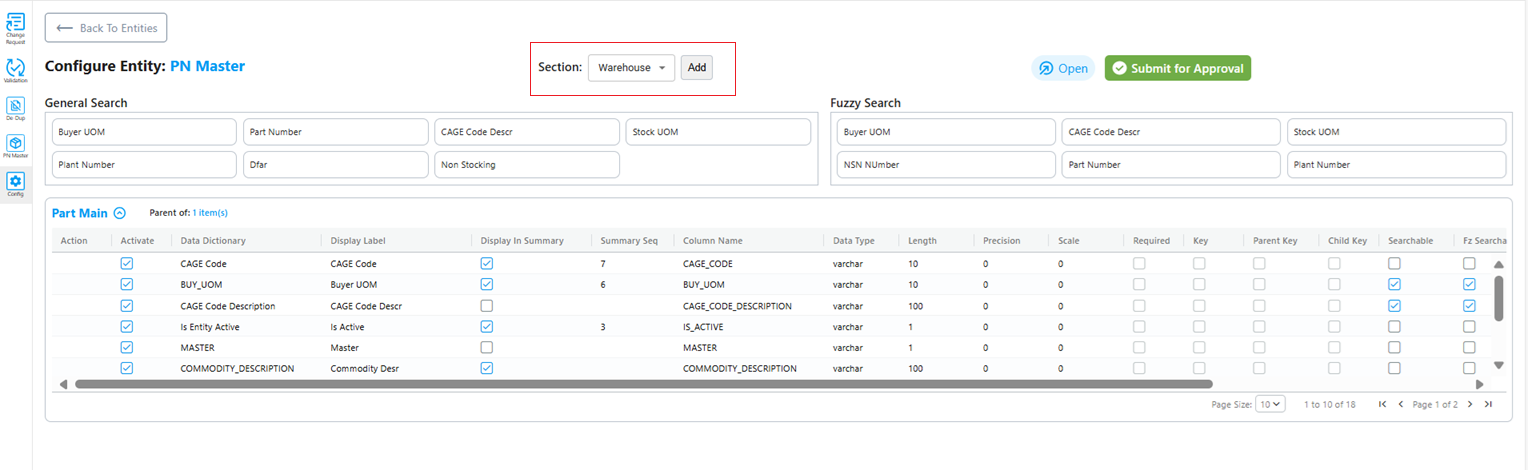
Add Sections
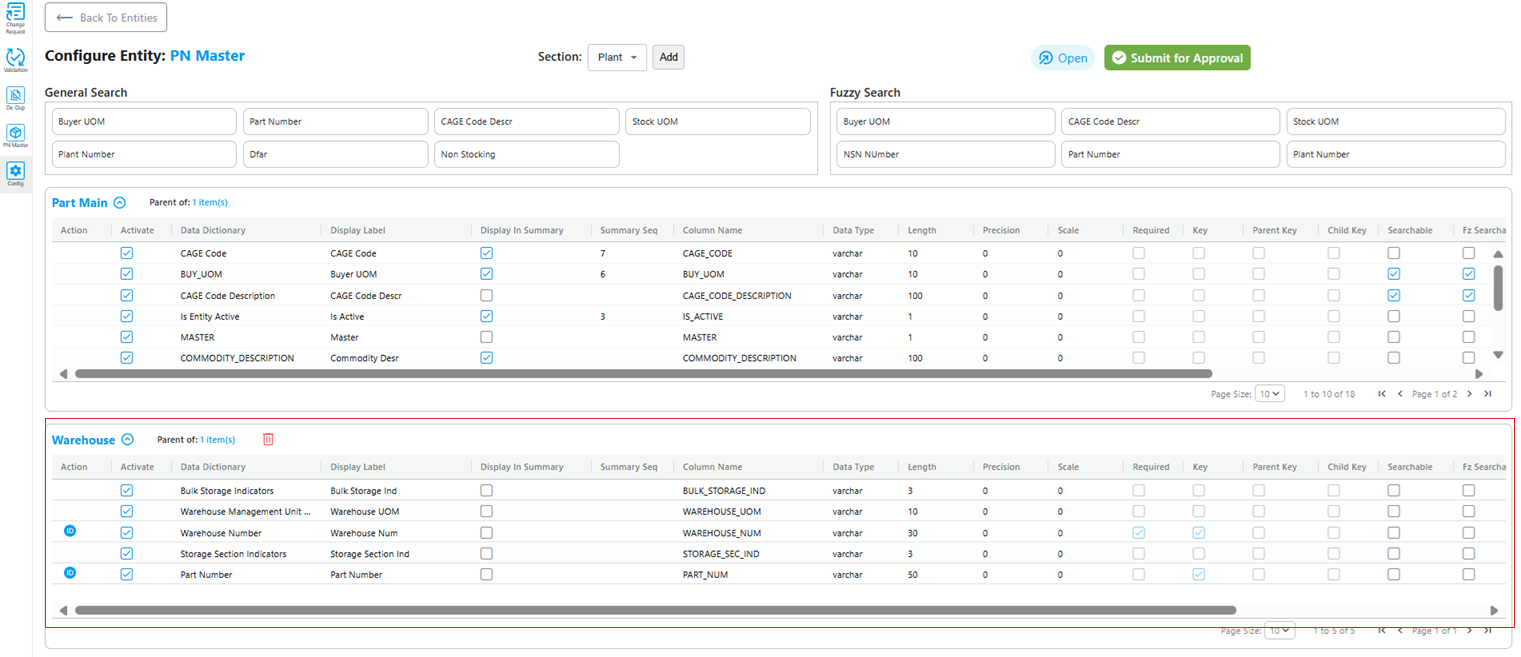
the user can choose from available sections, click to add them, and they will then be included and appear with the section name as the lable in the system.
Below screen shots will display the section added after the selection and adding.
All Sections Added
If all the sections are added the combo box will not be seen.
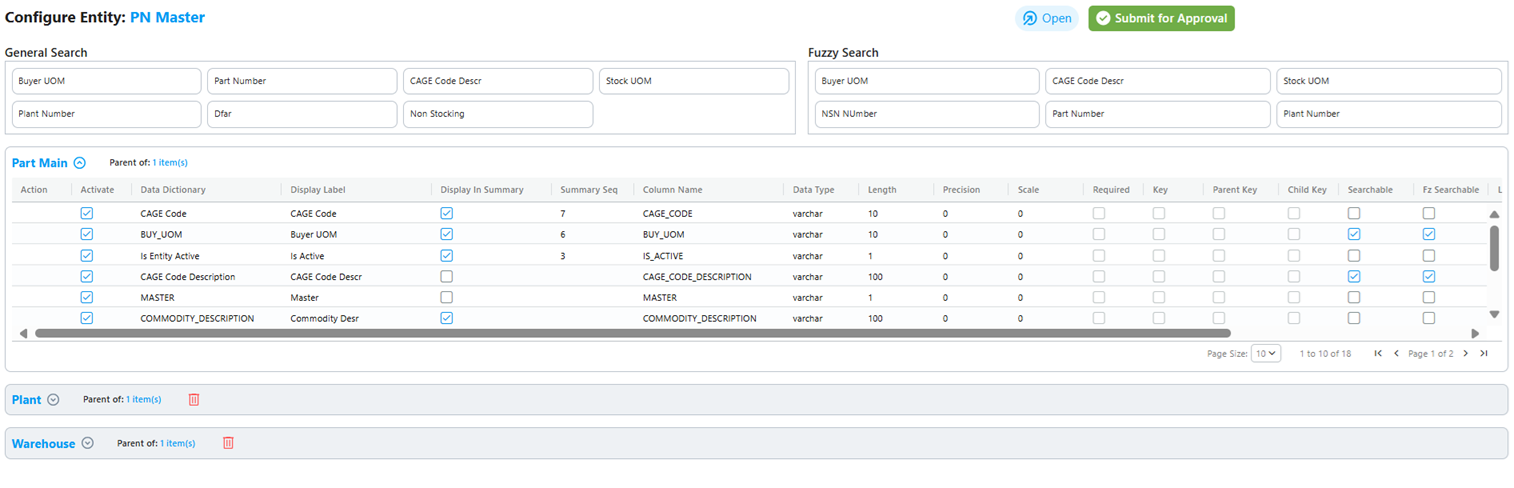
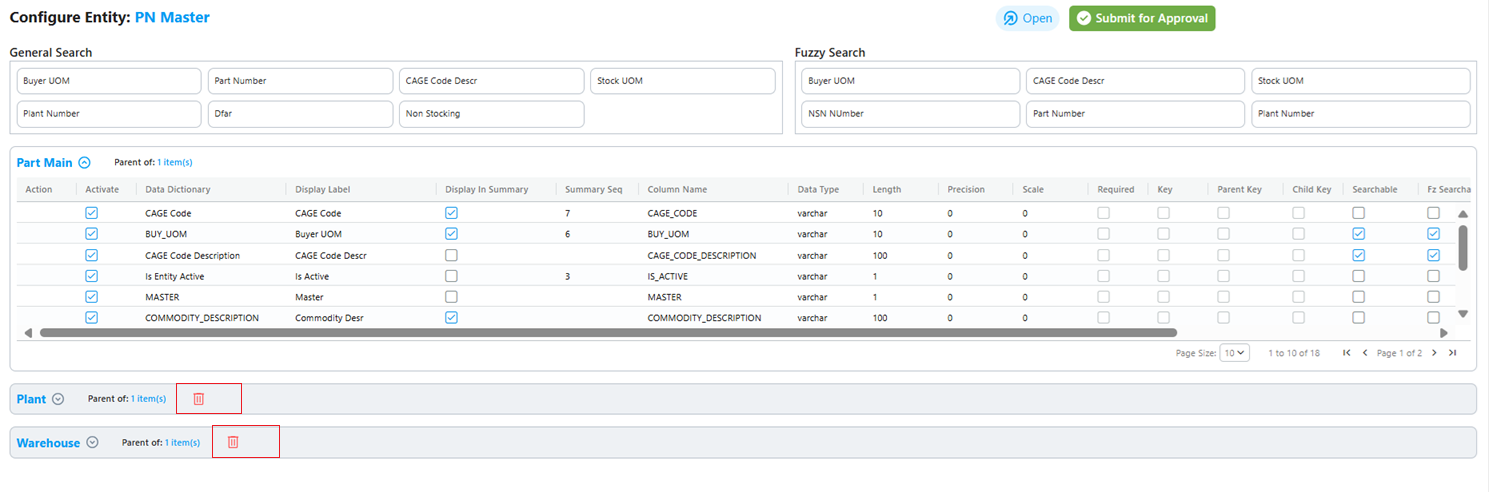
Delete the section added
users can easily remove any section they previously added by clicking the Delete button next to the section they want to remove.
Submit for Approval
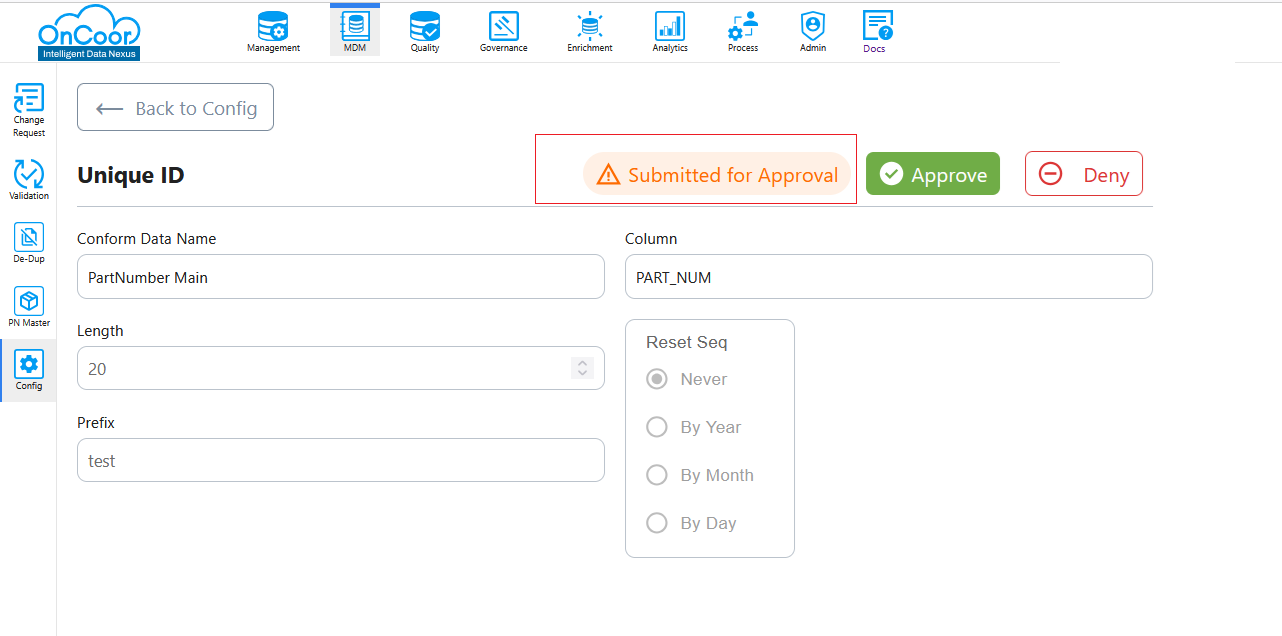
When user clicks Submit for Approval button and the request sent for Approval,he will no longer will be able to do any updates on the configurations. If he needs he will have to reOpen the page and do the necessary updates.