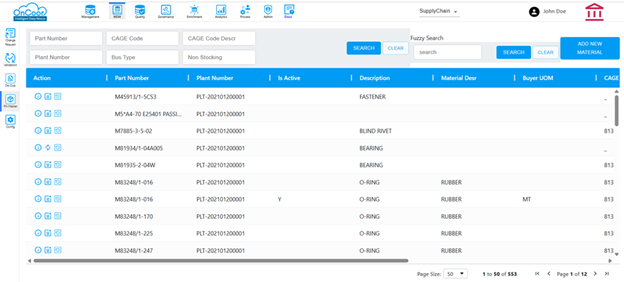
Material
OnCoor's MDM Material feature
Overview
The Material Feature in the MDM (Master Data Management) module of this application is designed to manage and maintain the master data related to materials or products. It serves as a centralized repository for all material-related data, ensuring consistency, accuracy, and accessibility across the organization. Here's an overview of the feature:
The Material Feature in the MDM module is vital for managing product and material data efficiently, reducing redundancies, and enabling seamless integration across business processes.
Key Features of the Material Module
• Material Creation and Management: Allows users to create new material records by entering key attributes like material name, description, unit of measure, and specifications.
• Workflow Integration: Changes to material data are routed through an approval workflow to ensure data governance. Notifications and alerts are sent to approvers for timely action.
• Search and Filter: Users can search for materials using keywords or filter them by attributes such as category, status, or creation date.
Benefits of the Material Feature in MDM
• Data Accuracy: Ensures clean and accurate material data across systems.
• Operational Efficiency: Streamlines material data updates and approvals.
• Improved Decision-Making: Provides reliable data for supply chain, production, and financial planning.
• Regulatory Compliance: Supports adherence to standards like ISO, FDA, or industry-specific norms.
How it Works
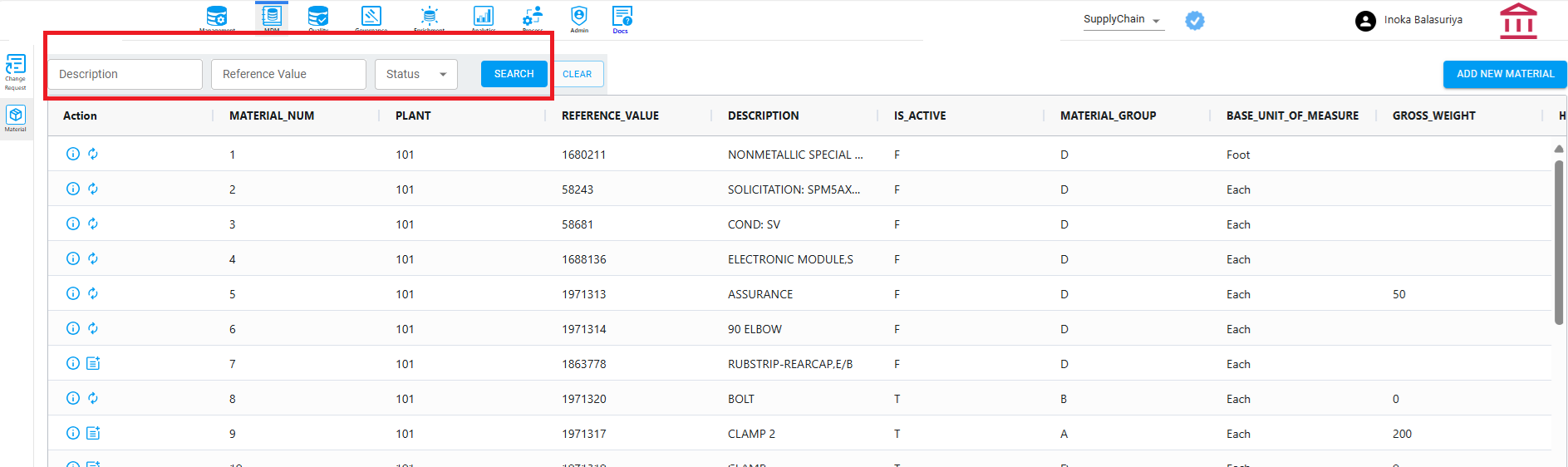
Search the Material that matches the criteria
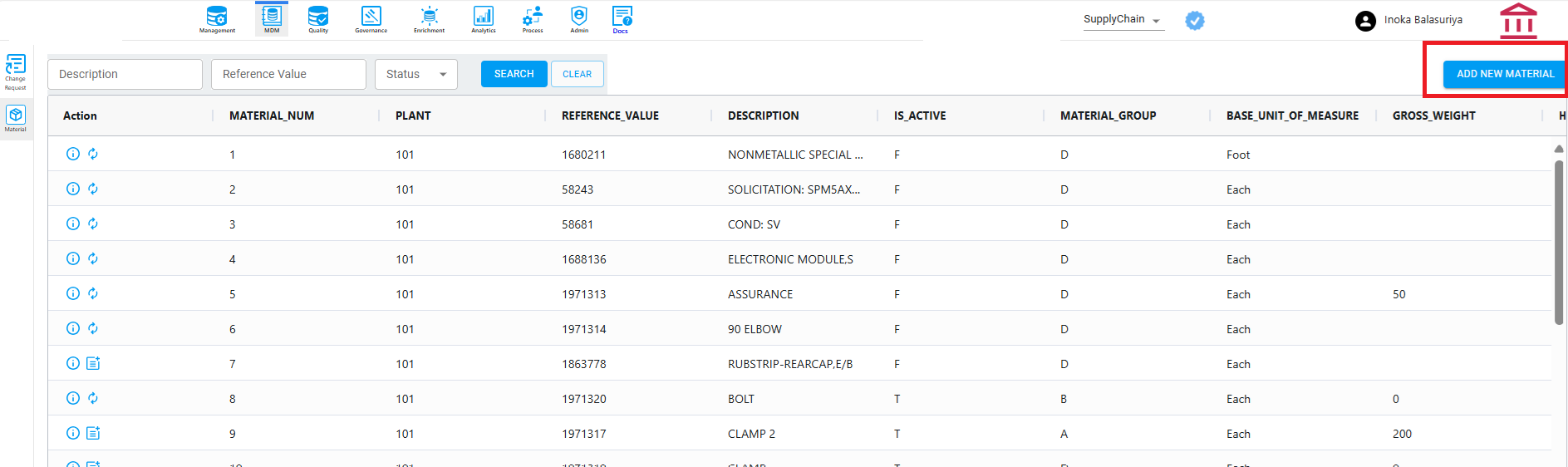
At the top of the screen is a search bar. When the user selects a specific Description,Reference Value,Status and clicks Search, the system displays all materials that meet the selected criteria.
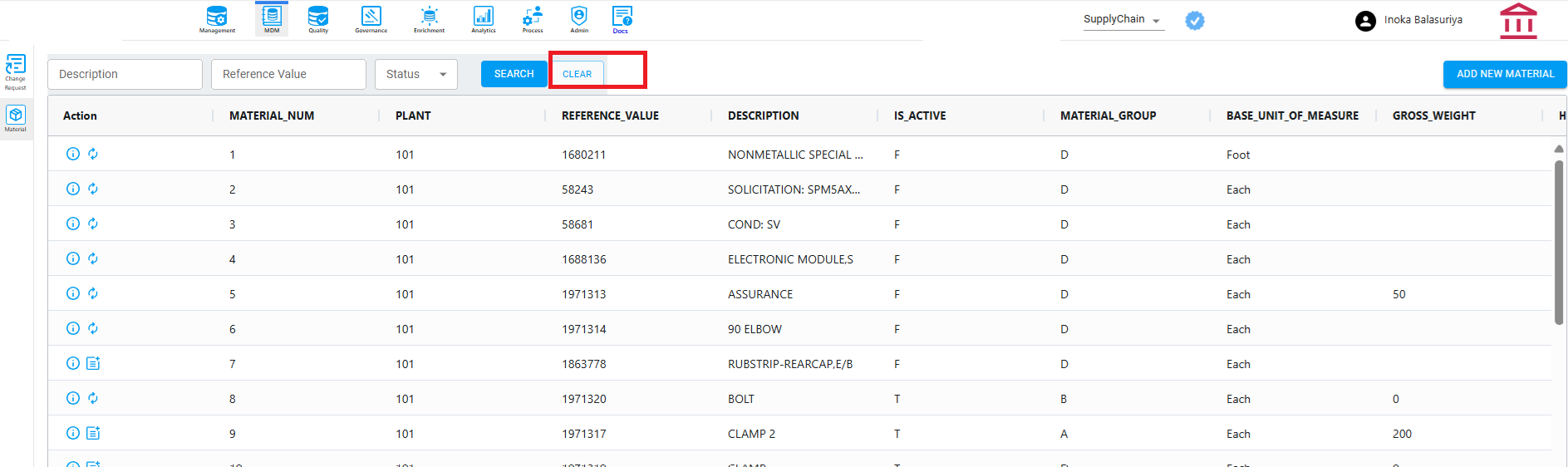
Clear the Search
The user can also clear their search.
Add New material
To add a new material, the user must click the Add New Material button shown on the screen. This action will open a pop-up window, as displayed in the next screen.
Popup Window
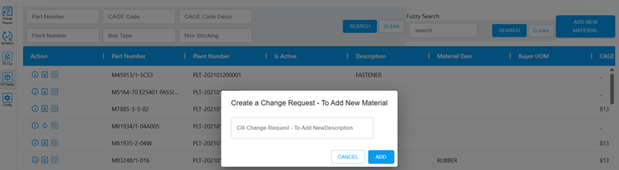
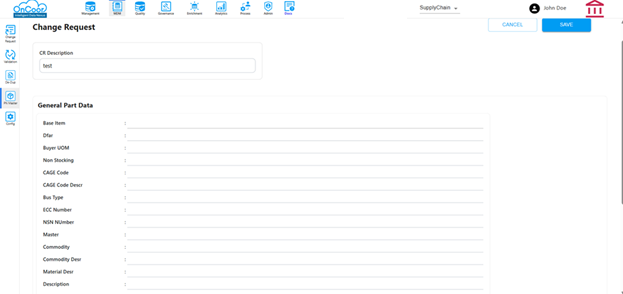
After the user enters the description and click Add button it will redirect to the CR Add new Material page
Update Material
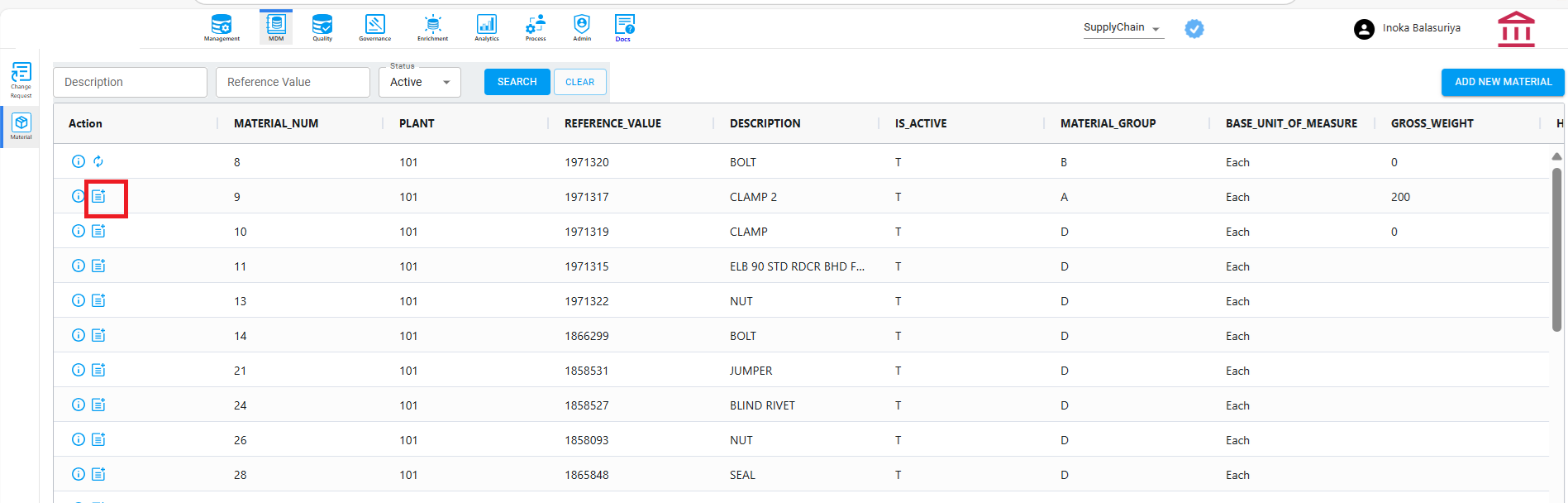
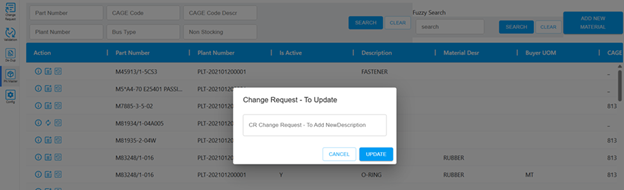
To update material User has to click the Change request button highlighted below. This action will open a pop-up window, as displayed in the next screen.
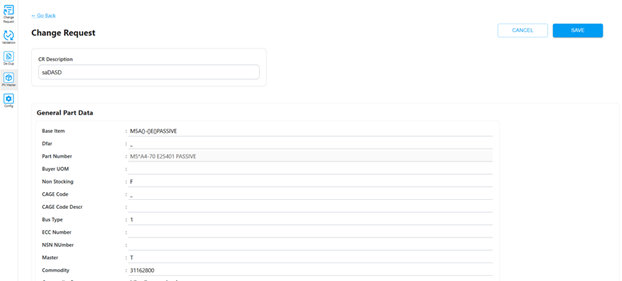
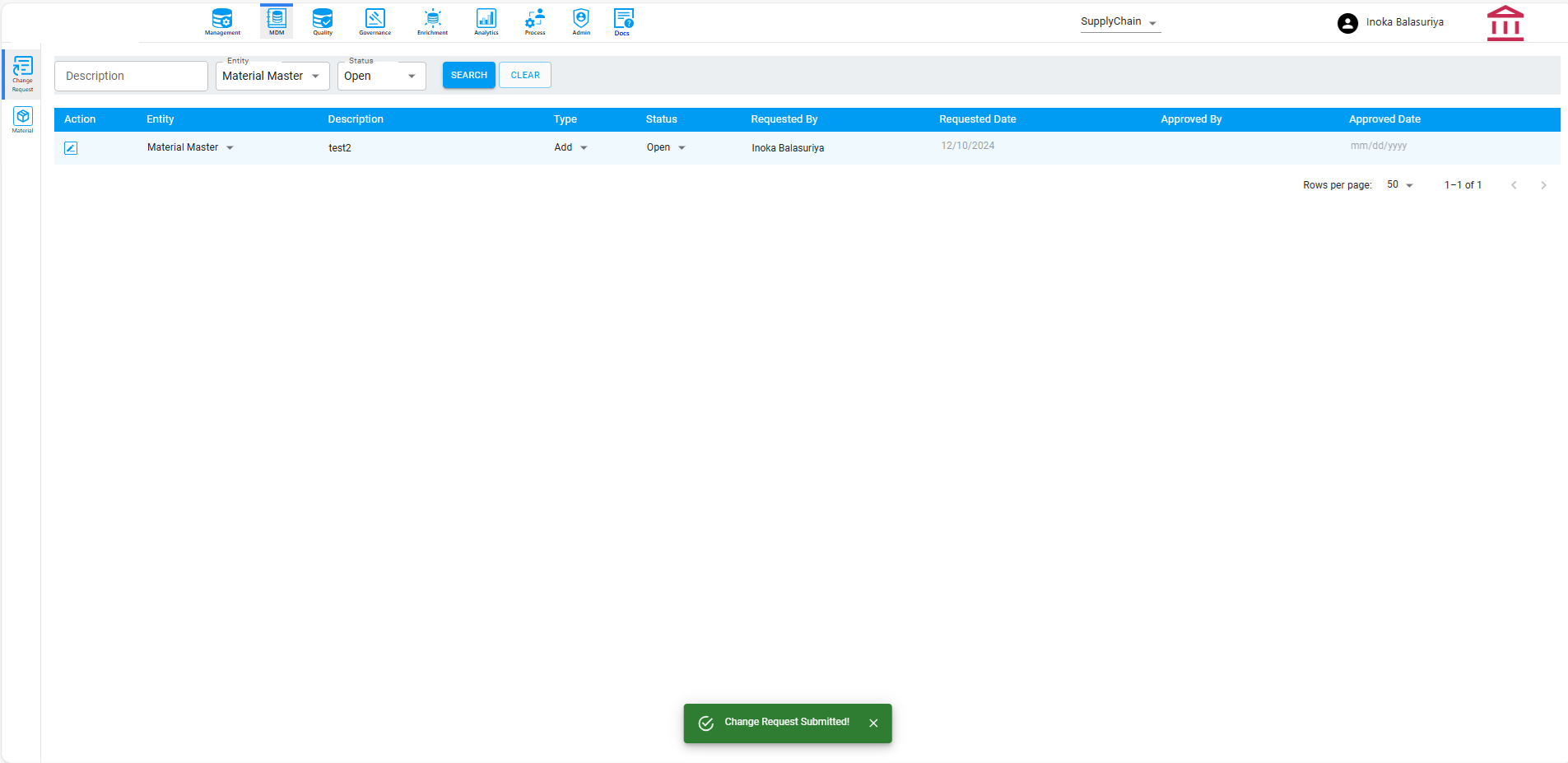
When a user adds or updates material and submits the request, it is sent through the workflow to the approvers configured in the system. A message will then appear stating, "Change Request Submitted," as shown on the screen.
Submit data
The approver will receive a notification email containing a link to the Change Request Update. By clicking the link, the approver can access the request and either Approve or Deny it, as shown below.
Audit History
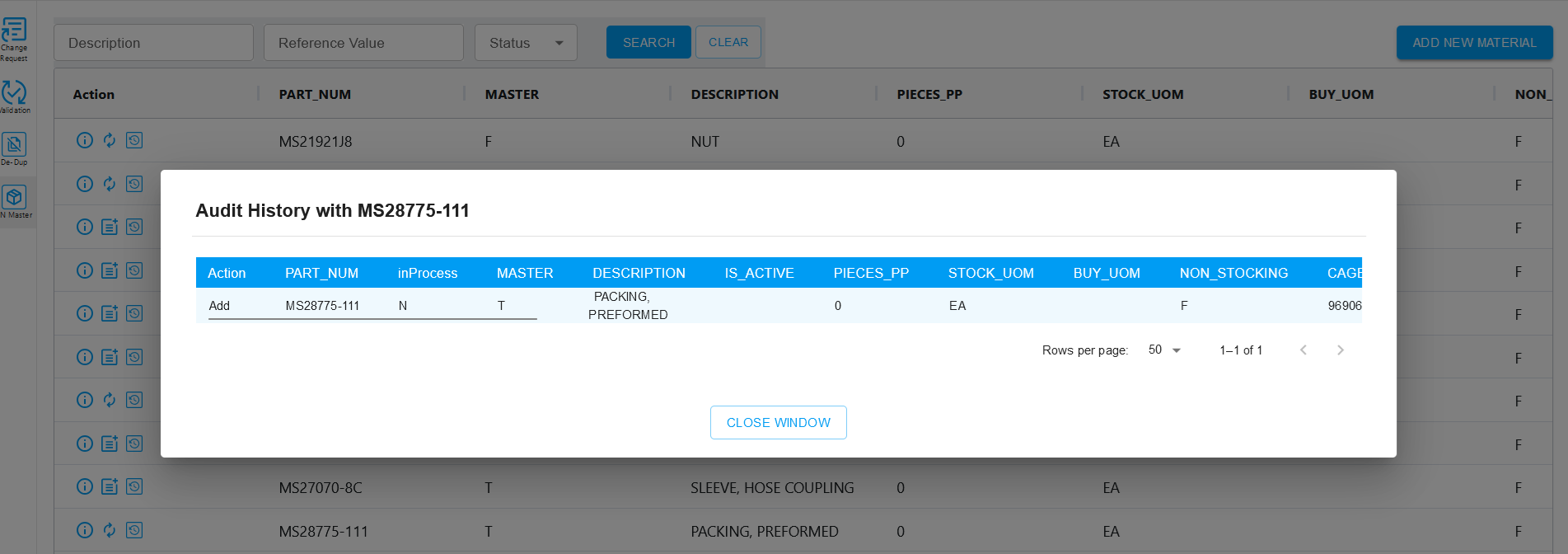
When the user clicks the Audit history button it will direct to the pages as given in the screen shots below.